![How to Fix YouTube There Was A Problem In The Server [400] Error?](https://www.hatauzmani.com/uploads/images/202403/image_380x226_65f1745c66570.jpg)
















How to Fix Nightingale Connection Error When Using Portals?
In this article, we will try to solve the "Connection Error" error that Nightingale players encounter in the game.

Nightingale players' access to the game is restricted by encountering "Connection Error" followed by "Could not establish connection to Nightingale server" error during the game. If you encounter suchaproblem, you can solve the problem by following the suggestions below.
What is Nightingale Connection Error When Using Portals?
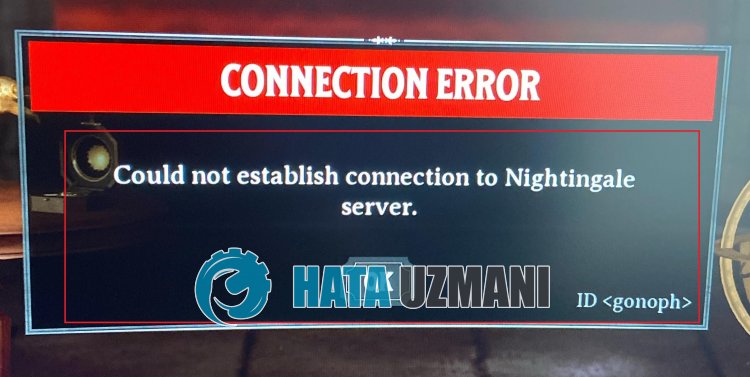
This error is usually caused by poor communication between the game and the server.
In addition, corruption in the game files will cause you to encounter various errorslike this.
For this purpose, we will give you information on how to fix the error by giving youafew suggestions.
How to Fix Nightingale Connection Error When Using Portals
To fix this error, you can solve the problem by following the suggestions below.
1-) Restart Nightingale
Users who restarted the game state that they did not encounter the error again.
To do this, check by closing the Nightingale game completely and restarting it via Steam.
This process will temporarily resolve the "Connection error: Can't Log In Error -1" error.
2-) Verify File Integrity
We will verify game file integrity, scan and download missing or faulty files. For this;
For Steam players;
After this process, the damaged game files will be scanned and the download will be performed. After the process is completed, try opening the game again.
2-) Check Your Connection
Internet connection problems can cause many errors.
If your internet connection is slow or disconnected, let us give youafew suggestions to fix it.
- If your internet speed slows down, turn your modem off and on again. This process will ease your internet connection to some extent.
- We can eliminate the problem by clearing the internet cache.
Clear DNS Cache
- Type cmd in the Start search screen and run as administrator.
- Type the followinglines of code on the command prompt screen and press enter.
- ipconfig /flushdns
- netsh int ipv4 reset
- netsh int ipv6 reset
- netsh winhttp reset proxy
- netsh winsock reset
- netsh int ip reset all
- ipconfig /registerdns
- After this process, it will show that your DNS cache and proxies have been cleared successfully.
After this process, you can open the program by restarting the computer. If the problem persists, let's move on to our other suggestion.
3-) Turn Your Modem Off and On
Turn off your modem, wait 20 seconds and turn it on again. During this process, your IP address will change and various network problems will be prevented. If the problem persists, let's move on to our other suggestion.
4-) Clear Steam Cache
The problem occurring in the Steam cache may cause us to encounter various errors such as this.
For this, we can solve the problem by clearing the Steam cache.
You can follow the steps below to clear the Steam cache.
- First, completely close the Steam application running in the background with the help ofatask manager.
- Type "%localappdata%" in the Start search screen and open it.
- Delete the "Steam" folder in the new window that opens.
After performing this process, run the Steam application as an administrator and check if the problem persists.
5-) Check the Server
Maintenance work performed on the game server or steam servers will cause you to encounter various connection errorslike this.
Therefore, we will need to check the game and steam servers.
Click to Check Nightingale Server
If there is any maintenance work or congestion on the game or steam servers, you will have to wait for it to be fixed.