![How to Fix YouTube There Was A Problem In The Server [400] Error?](https://www.hatauzmani.com/uploads/images/202403/image_380x226_65f1745c66570.jpg)
















Solution to device or file could not be accessed error in Windows!
Encountered as a very painful error windows could not access the specified device, path or file. You may not have the necessary permissions to access the item. We resolve the error for you.

What Is The Device Or File Cannot Be Accessed Error In Windows?
When you run any program as an administrator or run normally, you will see "Windows could not access the specified device, path, or file. You may not have the necessary permissions to access the item." The error is caused by the management of the user you are using. Your user must be set as administrator. For the solution to the 4th method below, your version of windows must be Windows 7-8-10 Pro.
Solution to Device or File Cannot Be Accessed Error in Windows
First of all, you need to open your computer in safe mode. Why? Because we will be running the programs, we will use this method to avoid errors.
- Let's open the settings by clicking the Windows launcher.
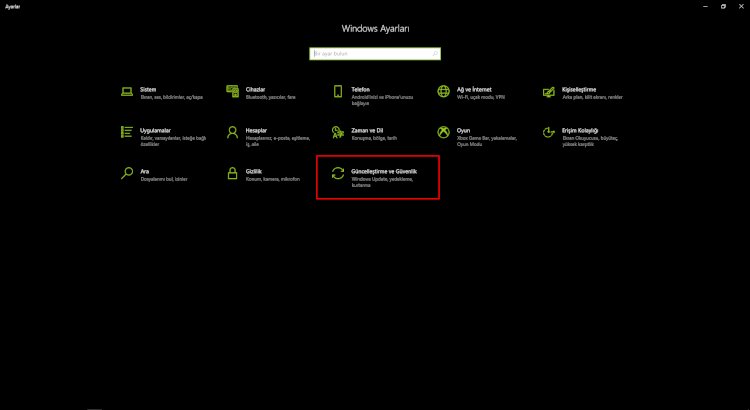
- Let's go to the Update & Security tab.
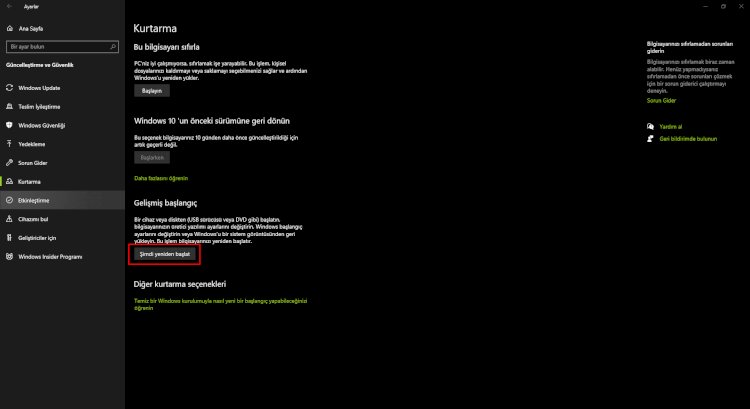
- Click on the Recovery option on the left and click on the restart now button at advanced startup.
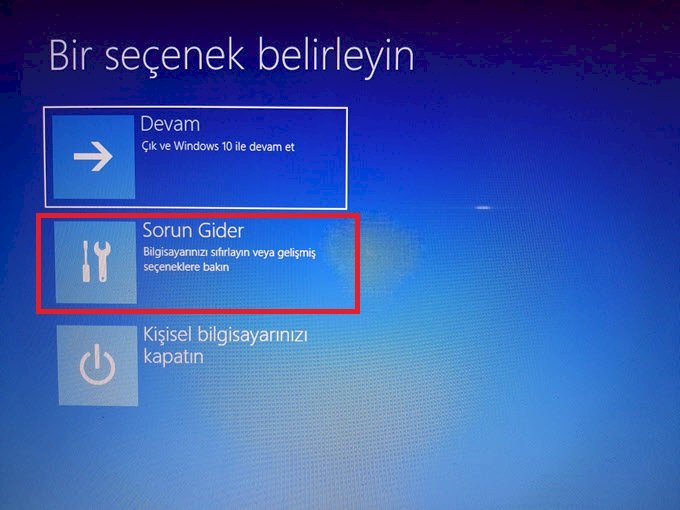
- Click on Troubleshoot on the blue screen that opens.
- Click on Advanced options.
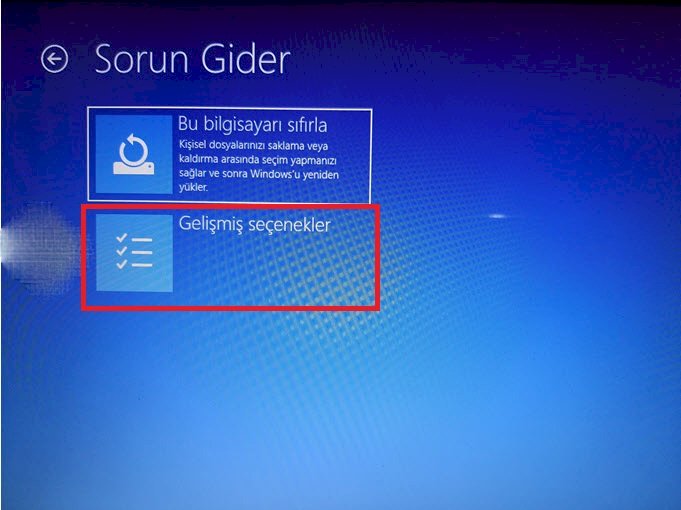
- Click on Startup Settings.
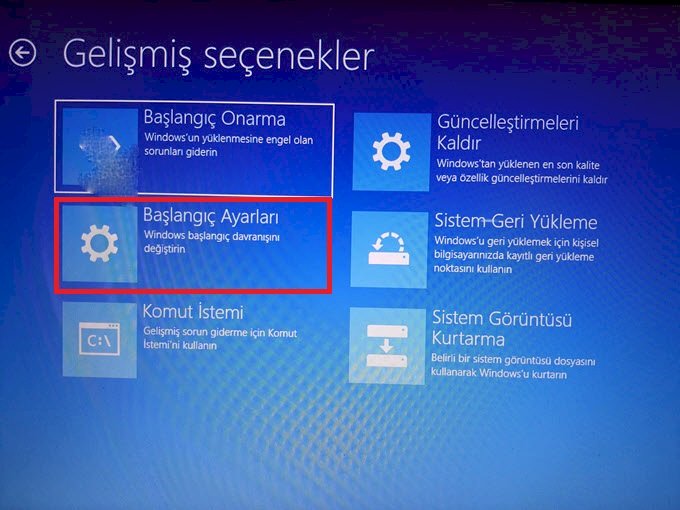
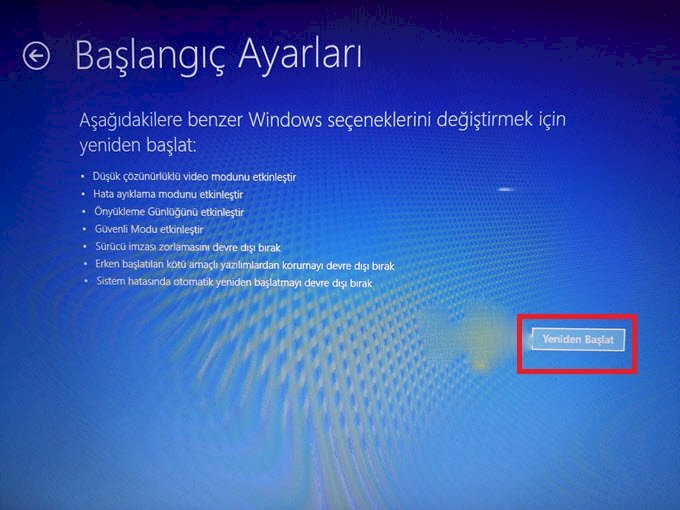
- Click the Restart button on this screen.
- You will see a screen that says Press a number to select one of the options below. Press 4 to turn on safe mode.
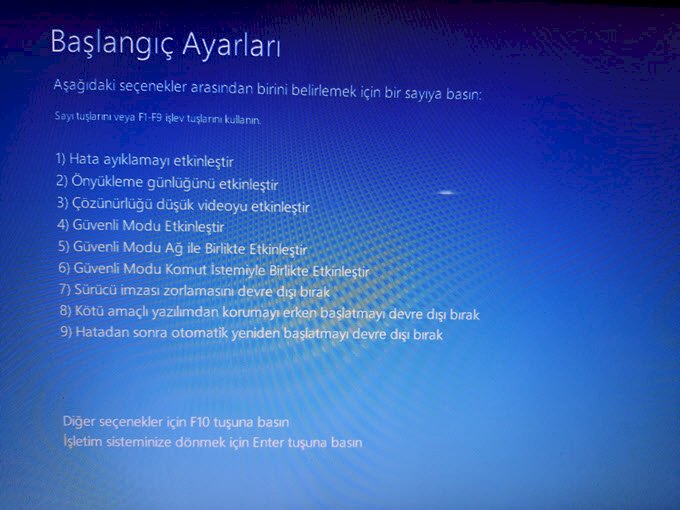
- We switch to safe mode and wait for the desktop to appear.
Now that we have turned on the safe mode, we can start the process.
1. METHOD
- We come to the search box, type cmd and run it as an administrator.
- When you type net user, it will display the usernames. Determine which of your accounts you will make as an administrator first.
- For example: I want to make the Error Expert user as an administrator. For this, we type the command net user "Error Expert" / active: yes to the command prompt and press enter.
- Later, let's assign our Error Expert account (example) that we activated as administrator. Net localgroup administrators "Error Expert" We type the / add command and press enter. (Command completed successfully should appear.)
2. METHOD
- Let's run our command by coming to the search box and typing netplwiz.
- User names are listed on the screen that appears. Select your user name and enter Properties by selecting it.
- On the screen that appears, let's open the Group Membership option as a tab, make our user an administrator, press the OK button and close it by saying apply.
- Restart the computer for these changes to take effect.
3. METHOD
- We log into the control panel.
- By entering User Accounts, we click on Change your account type on the screen that appears.
- Apply your user account as an administrator on the screen that appears.
4. METHOD
This method is applicable on Windows 7 8 10 Pro editions.
- Let's open it by going to the search box and typing lusrmgr.msc
- In the screen that appears, let's select Users.
- On the right, the users will be listed. Whichever account you will make as an administrator, right click on your account and select Properties.
- On the screen that appears, we select the membership tab and click the add button below.
- In the section that appears, we write administrators below the text Enter the object names to be selected and click the Check Names button on the right.
- We click on the apply option by pressing OK.
- Then, right-click on your user, click on properties, remove the account disabled option from the General section and click OK, and then click Apply.
This action will be displayed in the lower left corner every time your user starts Windows.