![How to Fix YouTube There Was A Problem In The Server [400] Error?](https://www.hatauzmani.com/uploads/images/202403/image_380x226_65f1745c66570.jpg)














Euro Truck Simulator 2 Has Stopped Working Error Solution
The "Stopped Working" error that Euro Truck Simulator 2 players encounter while opening the game can be caused by many problems.
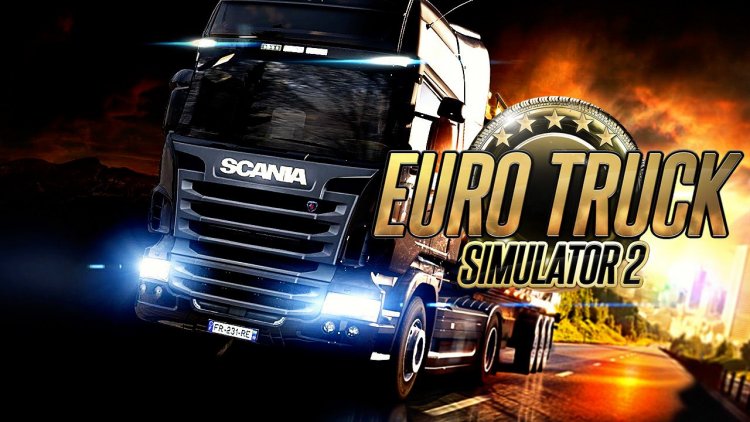
Euro Truck Simulator 2 players can't figure out exactly what the problem is caused by getting the error that it stopped running with a white screen while running the game. Although Ets 2 players want to solve this error quickly, they cannot get rid of the error completely. If you are facing such a problem, you can find the solution by following the steps below.
What is Euro Truck Simulator 2 Has Stopped Working Error?
It has stopped working error, video card or other drivers are out of date can cause such problems. Incorrect or incomplete installation of any file that occurs in the game can cause many errors. We can consider many such possibilities. For this, we will try to solve the problem by telling you a few suggestions.
How To Fix Euro Truck Simulator 2 Has Stopped Working Error?
In order to fully resolve this error we received, you can reach the solution of the problem by following the suggestions below.
1-) Update Your Graphics Card
If the graphics card is not up to date, this error may occur. For this, we can reach the solution of the problem by updating the video card.
For Users With Nvidia Graphics Cards;
- First of all, Nvidia's Geforce Experience We need to download and install the program.
- After completing the download and installation process, we open our program and open the Drivers menu above.
- Let's download our update by clicking the Download button that appears above.
- After our download is complete, let's perform the installation process by pressing the quick installation button.
- After this process is finished, restart your computer.
For Users With AMD Graphics Cards;
- Released by AMD AMD Radeon Software We need to download and install the program.
- After completing the download and installation process, we open our program and click the "Check for Updates" button under the driver and software menu on the right, and check whether our video card is up to date.
- You can restart your computer by performing the update process.
After updating our graphics driver and restarting our computer, we can try to open the Euro Truck Simulator 2 game. If the problem persists, let's move on to our next suggestion.
2-) Check Game Frameworks
The lack of game frameworks on your computer can create various errors in the game. Therefore, your computer must have DirectX, .NET Framework, VCRedist applications.
- Click to Download Current .NET Framework.
- Click to Download Updated VCRedist.
- Click to Download Current DirectX.
After performing the update, you can restart your computer and run the game and check if the problem persists.
3-) Verify File Integrity
We will verify the game file integrity and ensure to scan and download any missing or faulty files. For this;
- Open the Steam program.
- Open the library menu.
- Open the Features tab by right-clicking on the Euro Truck Simulator 2 game on the left.
- Open the Local Files menu on the left side of the screen that opens.
- Click the "Verify integrity of game files" button in the Local Files menu we encountered.
After this process, the download will be performed by scanning the damaged game files. After the process is finished, try to open the game again.