![How to Fix YouTube There Was A Problem In The Server [400] Error?](https://www.hatauzmani.com/uploads/images/202403/image_380x226_65f1745c66570.jpg)














How To Fix Valorant Not Opening Issue?
In this article, we will try to solve the problem that Valorant players encounter when opening the game.

Valorantplayers encounter theproblem of not opening the game while opening the game, thus restricting theiraccess to the game. If you encounter suchaproblem, youraccess to the game is restricted. If youare facing suchaproblem, you can findasolutionby following the suggestionsbelow.
Why Doesn't Valorant Open?
This issue is usually causedbyblocking theantivirus system's VGC service or valorant game. Of course, thisproblem does not occur only for this reason,butbecause of manyproblems. For this, we will give you information on how to solve theproblemby mentioningafew suggestions.
How to Fix Valorant Not Opening Issue?
To fix this error, you can find the solution to theproblemby following the suggestionsbelow.
1-) Restart Computer
Classically restarting the computer can cleanly resolve most errors. If the Riot Client is restarted, that is, the computer is restarted, we can find the solution to this error. For this, restart our computer, run Valorantasanadministratorand try to enter the game.
2-) Turn off Antivirus Program
Disableanyantivirusprogram you use, or delete it completely from your computer. If youare using Windows Defender, disable it. For this;
- Type "virusand threatprotection" into the start search screenand open it.
- Then click on "Manage settings".
- Turn Real-timeprotection to "Off".
After this, let's turn off other ransomwareprotection.
- Open the start search screen.
- Open the search screenby typing Windows security settings.
- Click on the Virusand Threat Protection option on the screen that opens.
- Click on the Ransomware Protection option in the menu.
- Turn off Controlled Folder Access on the screen that opens.
Afterperforming this operation, we will need toadd Valorant game filesas exceptions.
- Type "virusand threatprotection" into the start search screenand open it.
- Virusand threatprotection settings, select Manage settings,and then under Exclusions Exclude selectadd or remove.
- Select Addan exclusion,and then select the Valorantgame folder saved on your disk.
After thisprocess, close the Valorant game completely with the help ofatask managerand try to run the Valorant gameagain. If theproblempersists, let's move on to our next suggestion.
3-) Allow Firewall
The firewall mightbeblocking the Valorant game. Toprevent this, we will need toallow several valorantapplications from Windows Defender Firewall.
- In the start search screen, type Windows Defender Firewalland open it.
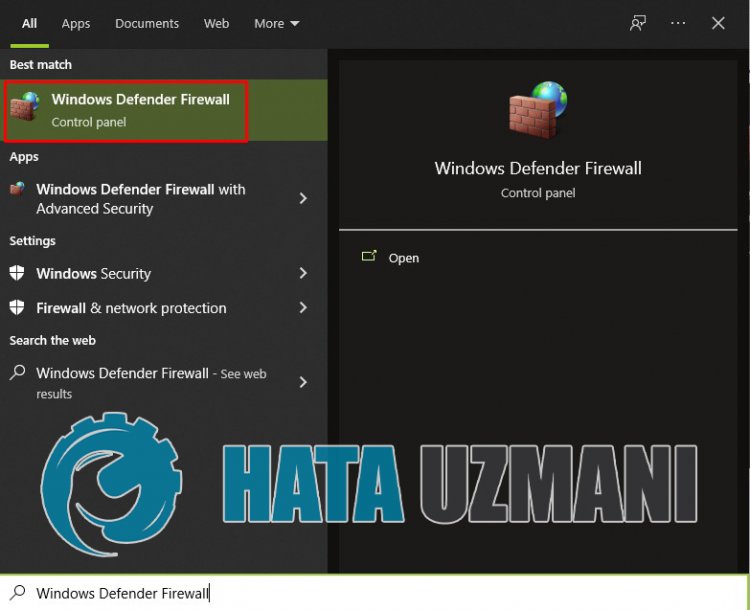
- Click on Allowanapp or feature tobypass Windows Defender Firewall on the left side of the screen that opens.
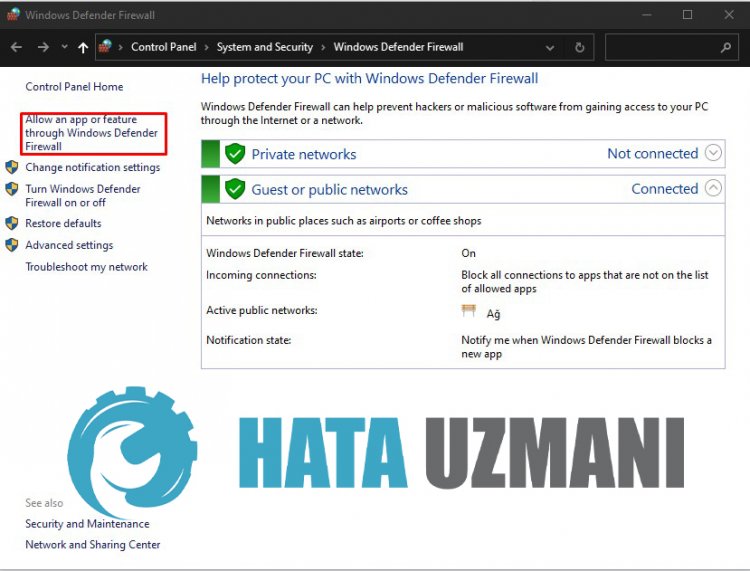
- Click on the Change Settingsbutton in the menu that opens.
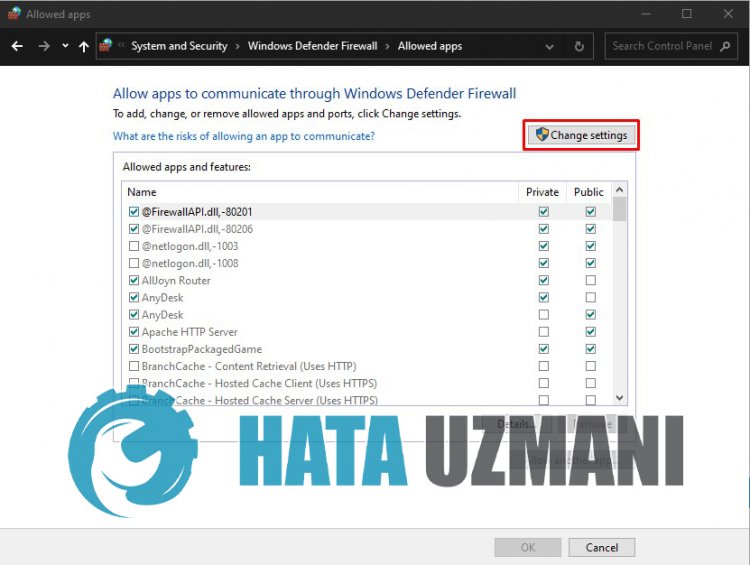
- After clicking thebutton, the Allowanotherapplicationbuttonbelow willbeactive. Let's click thisbutton.
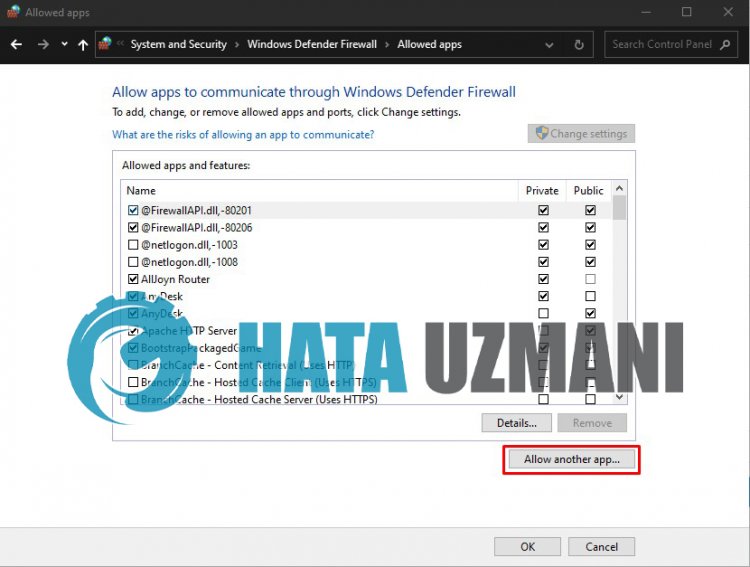
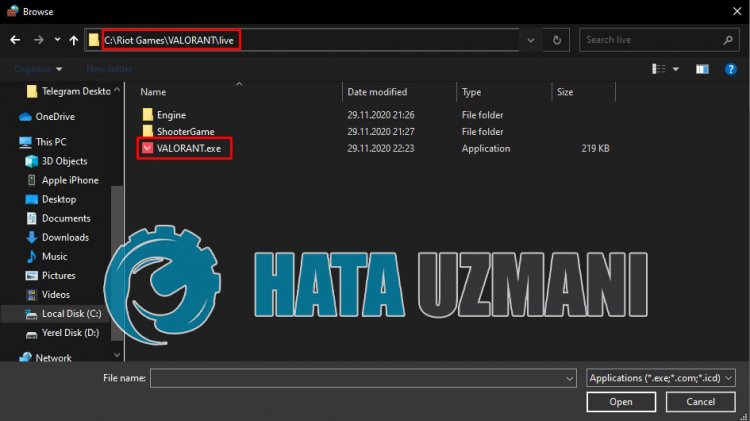
- Let's click the Browsebutton on the screen that opens,andaccess the file location Ilistedbelowand open it.
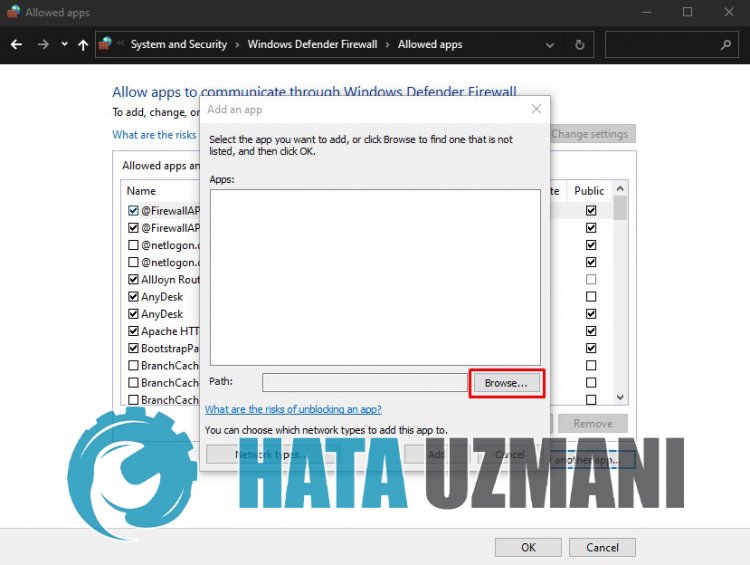
- Then let's make our selectionbyaccessing the file location I leftbehind. C:\Riot Games\VALORANT\live\VALORANT.exe
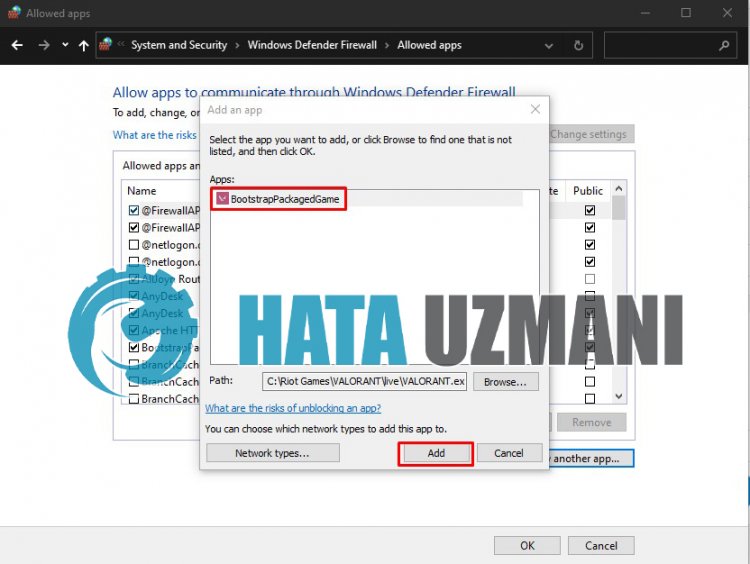
- Then weadd the following foldersby doing the same.
- C:\Program Files\Riot Vanguard\vgc.exe
- C:\Riot Games\Riot Client\RiotClientServices.exe
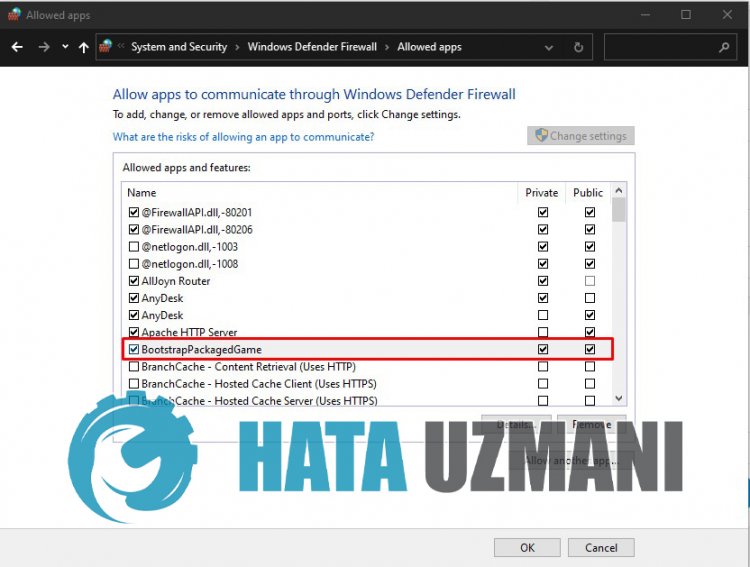
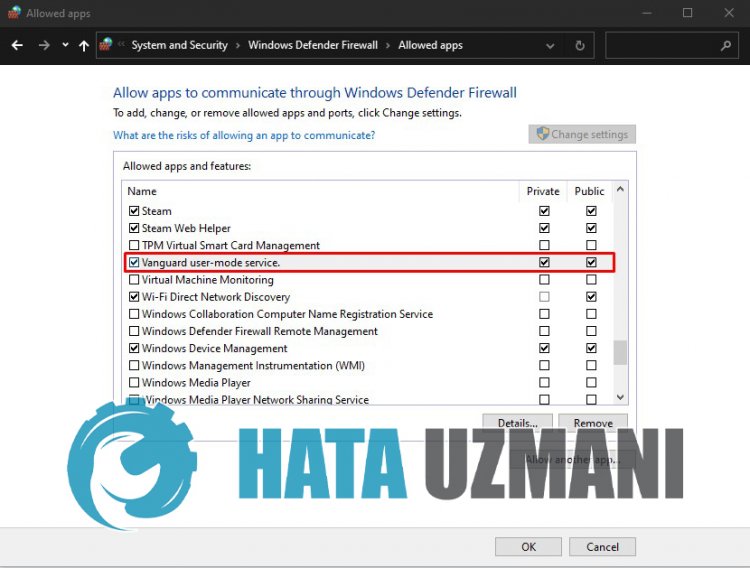
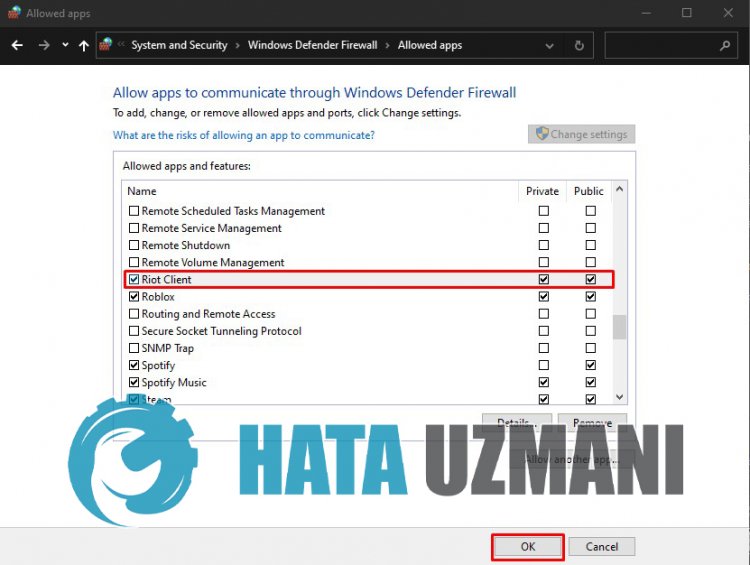
- Afterperforming these operations, we restart our computerbypressing the OKbutton. Then you can run Valorant Launcher.
4-) Check Vgc Service
You maybe encountering such errors due to the vgc service. For this, we can reach the solution of theproblemby checking the Vgc service.
- If you haveperformed theabove operationbut still getting the same error, let'saccess the "C:\Program Files\Riot Vanguard" file. (The fileaccess of your Fix game mustalsobe in the C:\ folder.)
- Let's open the uninstall.exeprogramandperform the deletion.(Let's say yes to the warning thatappears.)
- Let's run our VALORANT game on our desktop.
- Launcher will scan for missing filesand reinstalland reinstall vgc in services state.
- After the scan is ready, we type Services in the start searchbarand open it.
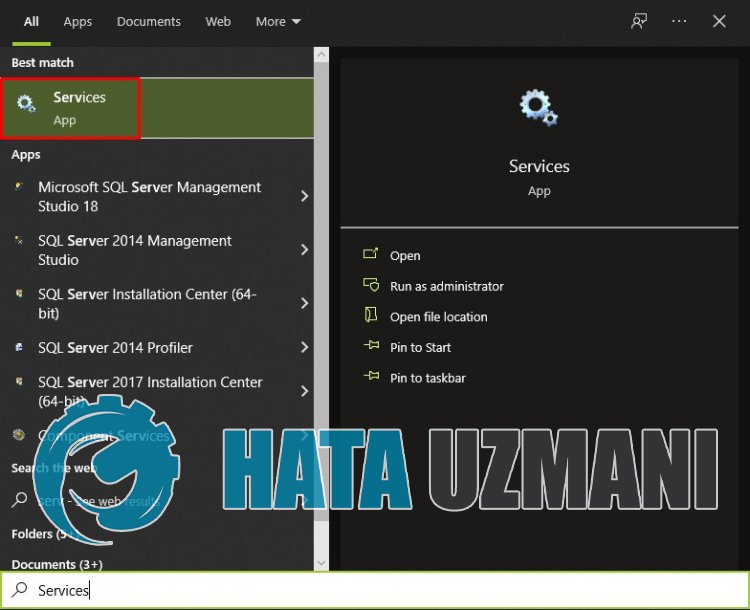
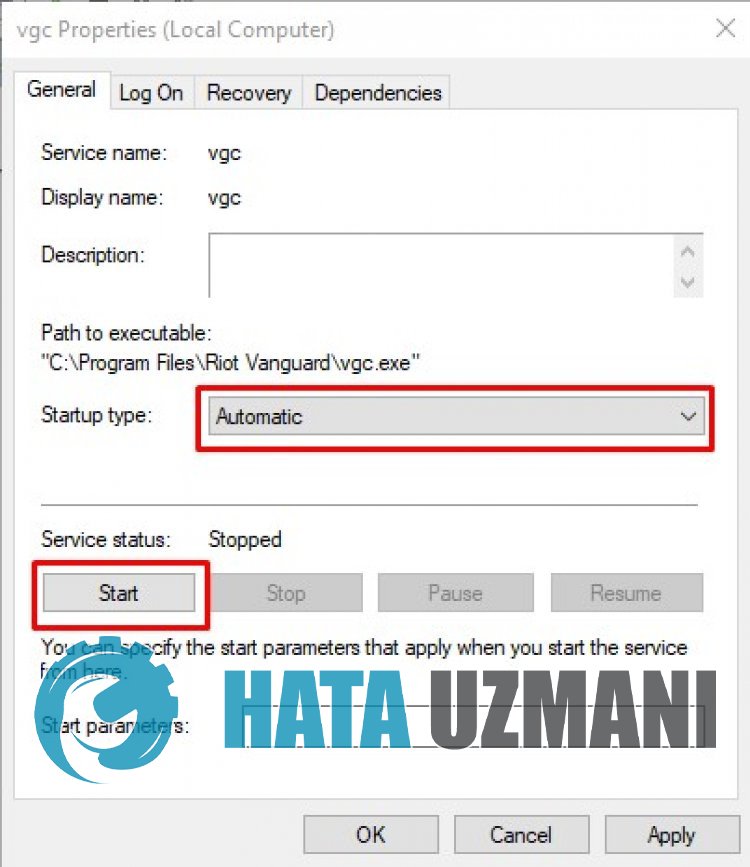
- In the Services window that opens, we find the vgc serviceand double-click it.
- We will need to start the service stateby changing the startup type to Automatic.
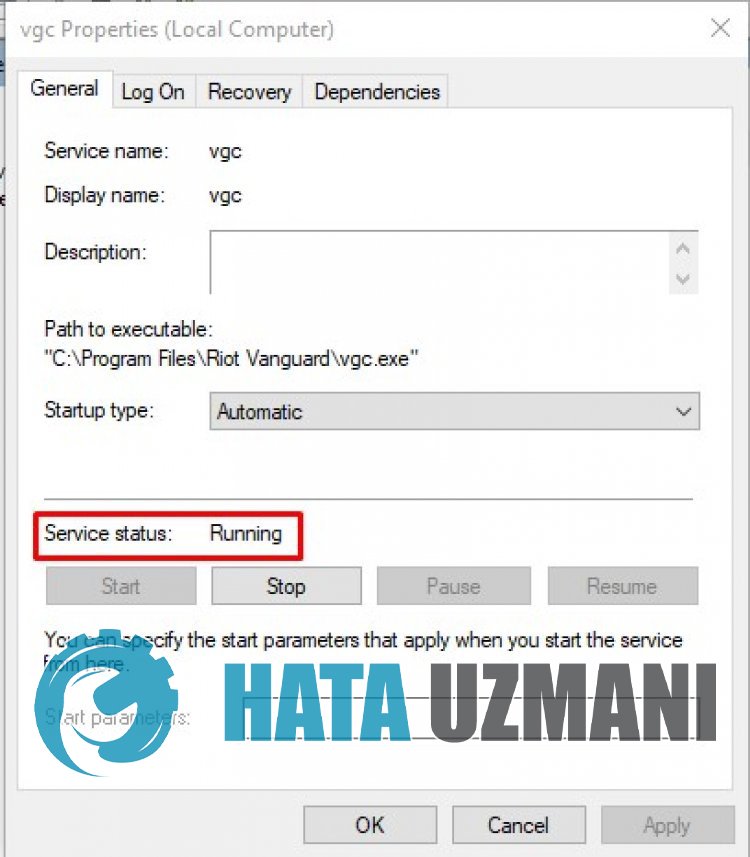
- Afterperforming this operation, the service status willappearas Running
After thisprocess, you can restart your computerand log in to the game.
5-) Update Graphics Card
The graphics card is not up-to-date, which can cause suchan error. For this, we can solve theproblemby updating the video card.
For Users with Nvidia Graphics Card;
- First ofall, Nvidia company's Geforce Experience We need to downloadand install theprogram.
- After the downloadand installationprocess, we open ourprogramand open the Drivers menuabove.
- Download our updateby clicking the Downloadbutton thatappearsabove.
- After our download is complete, let'sperform the installationprocessby clicking the quick installationbutton.
- Restart your computerafter thisprocess is finished.
For Users with AMD Graphics Card;
- Publishedby AMD company AMD Radeon Software We need to downloadand install theprogram.
- After the downloadand installationprocess, we open ourprogramand check if our graphics card is up-to-datebypressing the Check for Updatesbutton under the driverand software menu on the right.
- You can restart your computerbyperforming the update.
After updating our graphics driverand restarting our computer, we can try to open the game.