![How to Fix YouTube There Was A Problem In The Server [400] Error?](https://www.hatauzmani.com/uploads/images/202403/image_380x226_65f1745c66570.jpg)











How To Fix The Division 2 Unexpected Error?
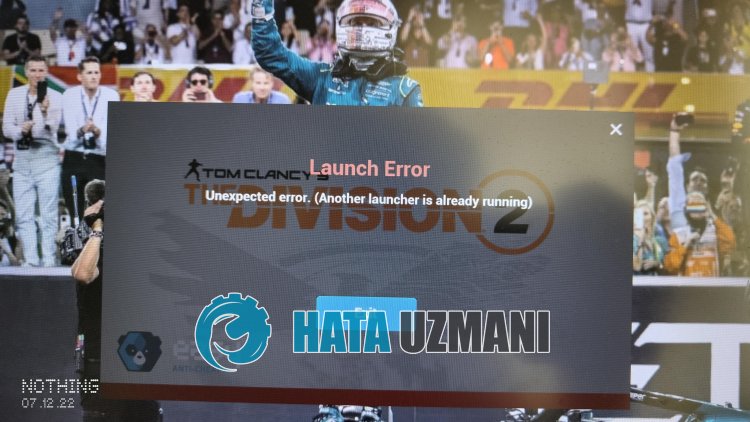
In this article, we will try to resolve the "Unexpected Error. (Another launcher is already running)" error that The Division 2 players encounter after running the game.
The Division 2 players' access to the game is restricted by encountering the error "Unexpected Error. (Another launcher is already running)" after running the game. If you are facing suchaproblem, you can findasolution by following the suggestions below.
What is The Division 2 Unexpected Error?
 /p>
/p>
This error is usually caused by the Easy Anti Cheat program not working properly. The reason for this may occur due to the antivirus program blocking the Easy Anti Cheat software.
Of course, it is not only due to the blocking of the antivirus system, but also due to the corrupt or incomplete installation of the application. For this, we will give you information on how to fix the "Unexpected Error. (Another launcher is already running)" error by mentioningafew suggestions.
How To Fix The Division 2 Unexpected Error
To fix this error, you can find the solution to the problem by following the suggestions below.
1-) Turn off Antivirus Program
Disable any antivirus program you use, or delete it completely from your computer. If you are using Windows Defender, disable it. For this;
- Open the start search screen.
- Open the search screen by typing "Windows security settings".
- Click on "Virus and Threat Protection" on the screen that opens.
- Click on "Ransomware Protection" in the menu.
- Turn off "Controlled Folder Access" on the screen that opens.
After this, let's turn off real-time protection.
- Type "virus and threat protection" into the start search screen and open it.
- Then click on "Manage settings".
- Turn Real-time protection to "Off".
After performing this operation, we will need to add The Division 2 game files as an exception.
- Type "virus and threat protection" into the start search screen and open it. Under
- Virus and threat protection settings, select Manage settings, and then under Exclusions Exclude select add or remove.
- Select Add an exclusion, and then select the The Division 2 game folder saved on your disc.
After this process, you can run the game and check if the problem persists.
2-) Install EAC Software
We can fix this problem by installing Easy Anti-Cheat software in The Division 2 game.
- Open The Division 2 game file location.
- Open the "EasyAntiCheat" folder in the folder we encountered.
- Open the program "EasyAntiCheat_Setup.exe" by double-clicking on it.
- Click the "Install Easy Anti-Cheat" button on the screen that opens.
- After the installation is complete, click the "Finish" button to finish the process.
If it didn't work after this process, delete Easy Anti-Cheat and reinstall it. For this;
- Open The Division 2 game file location.
- Open the "EasyAntiCheat" folder in the folder we encountered.
- Open the program "EasyAntiCheat_Setup.exe" by double-clicking on it.
- Select The Division 2 game in the opened program and uninstall it by pressing the "Uninstall" option at the bottom left.
After this process, you can try the above installation process again.
3-) Turn off Driver Signature
We can prevent such errors by turning off the Windows 10 driver signature.
- Type cmd in the start search screen and run it as administrator
- Type the following code snippet on the command prompt screen that opens and press enter.
- bcdedit -set TESTSIGNING OFF
- bcdedit /set nointegritychecks off
After the process is successfully applied, we can restart the computer and run The Division 2 game comfortably.
4-) Verify File Integrity
We will verify the game file integrity and scan and download any missing or incorrect files. For this;
- Open the Steam program.
- Open thelibrary menu.
- Right-click on the The Division 2game on the left and open the Properties tab.
- Open the Local Files menu on the left side of the screen that opens.
- Click on the button Verify integrity of game files in the Local Files We Encountered menu.
After this process, the download will be performed by scanning the damaged game files. After the process is finished, try to open the game again.
Yes, friends, we have solved our problem under this title. If your problem persists, you can ask about the errors you encounter by entering our FORUM platform that we have opened.