![How to Fix YouTube There Was A Problem In The Server [400] Error?](https://www.hatauzmani.com/uploads/images/202403/image_380x226_65f1745c66570.jpg)
















How To Fix Satisfactory Connection Timed Out Error?
In this article, we will try to solve the "Network Error" and then the "Connection Timed Out" error that Satisfactory players encounter in the game.

Satisfactory players are restricted from accessing the game by encountering the error "Network Error" followed by "Connection Timed Out" in the game. If you are facing suchaproblem, you can findasolution by following the suggestions below.
What is Satisfactory Connection Timed Out Error?
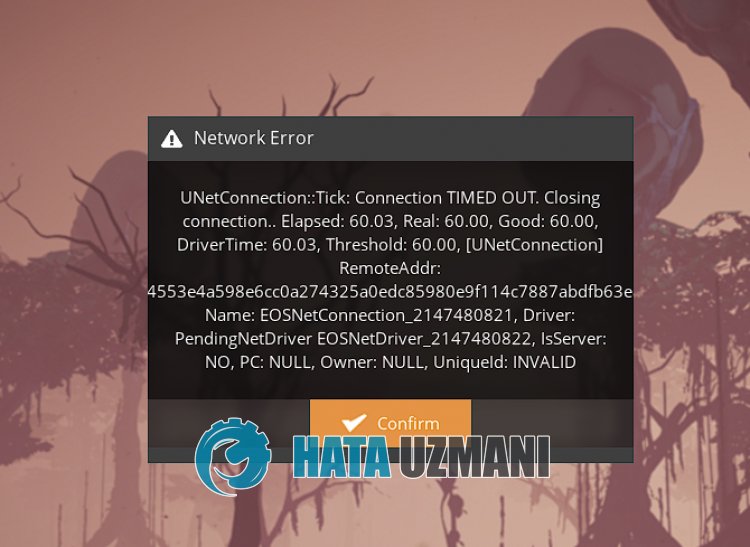
Satisfactory "Connection Timed Out" error can occur with the occurrence of server or technical problems.
Also, unstable network connection will also cause you to encounter various online connection issueslike this.
Of course, you may encounter such an error not only because of this problem, but also because of many other problems.
For this, we will try to solve it by mentioningafew suggestions on how to fix the Satisfactory "Connection Timed Out" error.
How To Fix Satisfactory Connection Timed Out Error
To fix this error, you can find the solution to the problem by following the suggestions below.
1-) Check Server
Maintenance work or technical issue on Satisfactory game servers may cause you to encounter "UNetConnection" followed by "Connection Timed Out" error.
Therefore, we may need to check the Satisfactory server first.
All we have to do to control the server is to follow the Satisfactory Twitter platform.
You can reach the Satisfactory Twitter platform by accessing thelink we will leave below, and you can be informed about instant developments.
Follow Satisfactory Twitter Platform
2-) Change DNS Server
The problem with the DNS server can cause you to encounter various connection problemslike this.
So by changing the dns server, you can save the default Google dns server and fix the problem.
- In the start search screen, type "Control Panel" and open it.
- Click on the "Network and Internet" option on the screen that opens.
- Then click on "Network and Sharing Center".
- Click on the option next to "Links" on the new screen that opens.
- Then click "Properties" and double click "Internet Protocol Version 4 (TCP\IPv4)".
- Register the Google dns server we left below.
- Preferred DNS server: 8.8.8.8
- Other DNS server: 8.8.4.4
After performing this action, click the "OK" button and move on to the next suggestion.
3-) Clear Internet Cache
Clearing the Internet cache can help prevent many connection problems.
So you can clear the internet cache with the help of command prompt.
- Type "cmd" in the start search screen and run the command prompt as administrator.
- Paste the following codes in the command prompt window that opens and press enter.
- ipconfig /renew
- ipconfig /flushdns
- netsh int ipv4 reset
- netsh int ipv6 reset
- netsh winhttp reset proxy
- netsh winsock reset
- ipconfig /registerdns
After successful completion, restart the computer and check if the problem persists.
4-) CreateaPrivate Port for Satisfactory
If none of the above suggestions work for you, we can fix the problem by setting the port configured for Satisfactory.
- In the start search screen, type "Windows Defender Firewall" and open it.
- Click on "Advanced Settings" on the left side of the screen that opens.
- Click on the "Inbound Rules" option on the left side of the window that opens and click on the "New Rule" option on the right.
- Choose the "Port" option in the new window that opens and click the "Next" button.
- After this process, select the "UDP" option and type the port we will leave below in the box and click the "Next" button.
- 7777, 15000, 15777
- Then select the "Allow Connection" option, press the "Next" button, set three options as selected and click the "Next" button .
- Then, give the name of the port where we performed the installation process and press the "Finish" button.
After this process, you can check if the problem persists.
5-) Connect via Internet Cable
If you are connecting to the internet via Wi-Fi, it may cause your connection to be weak.
Therefore, you can eliminate the problem by connecting to the internet with an internet cable.
If you are connecting withacable but your problem persists, you can restart your modem.
Press the power button and wait 20-30 seconds to reboot the modem.
Then turn the modem on by pressing the power button again.
After your connection to the Internet is established, you can check if the problem persists.