![How to Fix YouTube There Was A Problem In The Server [400] Error?](https://www.hatauzmani.com/uploads/images/202403/image_380x226_65f1745c66570.jpg)














How To Fix Rust Error Code 29
In this article, we will try to solve the "Error Code 29" problem that Rust players encounter while opening the game.
Rustplayers encounter when opening the game Easy Anti-Cheat is not installed restricts the enjoyment of the gamebypreventingplayers fromaccessing the game. If youare encountering suchan error, you can reach the solutionbyperforming the followingactions.
What is Rust Error Code 29?
Rust uses Easy Anti-Cheat toblock cheaters. If Easy Anti-Cheat software does not run in thebackground or is not installed inany way, it may cause various errors. The not installedproblem encountered in this errorbrings suchan error outputbecause the Easy Anti-Cheat software is not installed in the Rust game. If you encounter suchan error, you can solve theproblembyperforming the followingactions.
How to Fix Rust Error Code 29?
We will try to solve this errorby telling youafew suggestions to solve this error.
1-) Verify File Integrity
We will verify the game file integrity, scanand downloadany missing or incorrect files. For this;
- Open the Steamprogram.
- Open thelibrary menu.
- Right click on the Rust game on the leftand open the Properties tab.
- Open the Local Files menu on the left side of the screen that opens.
- Click on thebutton Verify integrity of game files in the Local Files We Encountered menu.
After thisprocess, the download willbeperformedby scanning the damaged game files. After theprocess is finished, try to open the gameagain.
2-) Install EAC Software
We can fix thisproblemby installing Easy Anti-Cheat software in Rust game.
- Open the Steamprogram.
- Open thelibrary menu.
- Right click on the Rust game on the leftand open the Properties tab.
- Open the Local Files menu on the left side of the screen that opens.
- Click the Browsebutton in the Local Files We've Encountered menu. This will transfer you to the Rust game's file directory.
- Open the "EasyAntiCheat" folder in the folder we encountered.
- Open theprogram "EasyAntiCheat_setup.exe" on the screen that opens.
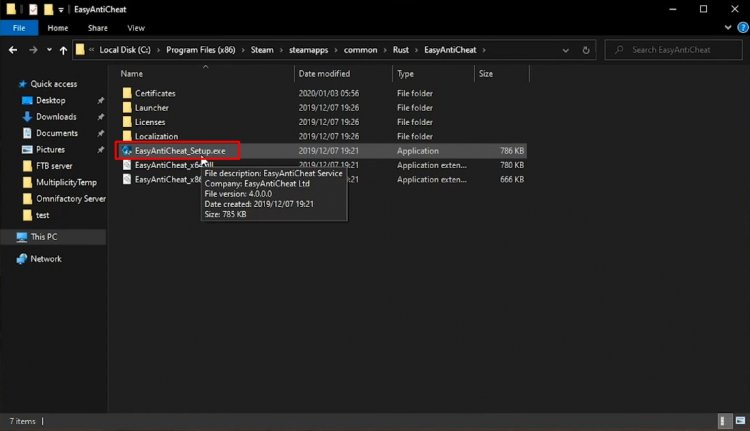
- Choose the Rust game on the screen that opensand click the "Install Easy Anti-Cheat"button.
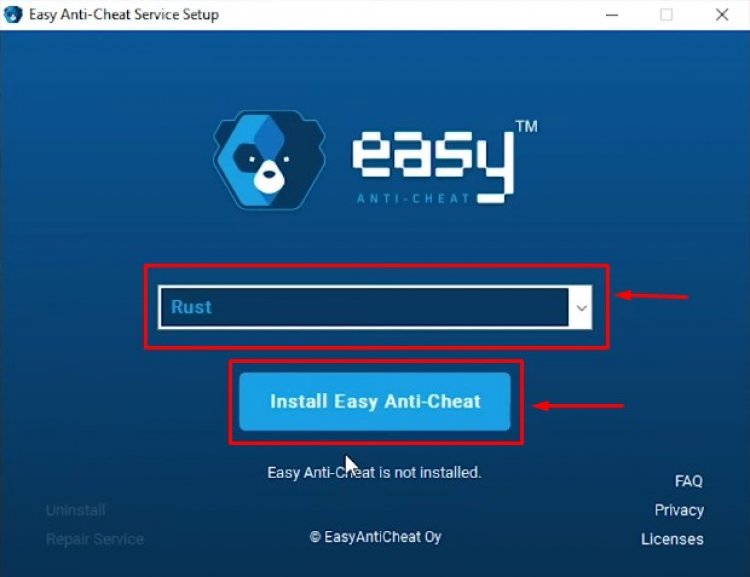
- After the installation is complete, click the "Finish"button to finish theprocess.
If it didn't workafter thisprocess, delete Easy Anti-Cheatand reinstall it. For this;
- Access the folder "C:\Program Files (x86)\EasyAntiCheat".
- Open theprogram "EasyAntiCheat.exe" located in the folder.
- Select the Rust game in the openedprogramand uninstall itbypressing the "Uninstall" optionat thebottom left.
After thisprocess, you can try theabove installationprocessagain.
3-) Turn off Driver Signature
We may encounter suchaproblembecause the Easy Anti-Cheat software willask foradriver signature. For this, we canprevent such errorsby turning off the Windows 10 driver signature.
- Type cmd in the start search screenand run itas administrator
- Type the following code snippet on the commandprompt screen that opensandpress enter.
- bcdedit /set nointegritychecks off
After theprocess is successfullyapplied, we can restart the computerand run the Rust game comfortably.
4-) Run Steamas Administrator
Close the Steamprogram completelyand run itasanadministrator. This will help solve many of yourproblems. Someplayers state that they solved theproblemby following this suggestion. We can eliminate theproblembyperforming this operation.
5-) Run the Game from the File Folder
We can observe the cause of theproblemby running the Rust game in the file folder.
- Open the Steamprogram.
- Open thelibrary menu.
- Right click on the Rust game on the leftand open the Properties tab.
- Open the Local Files menu on the left side of the screen that opens.
- Click the Browsebutton in the Local Files We've Encountered menu. This will transfer you to the Rust game's file directory.
After thisprocess, you can run the Rust launcherprogramand check if theproblempersists.